Dusty
Free up disk space without losing anything: find files & folders you haven't touched in a year, back them up to Google Drive / OneDrive / any folder, verify, then delete. Portable Windows exe.
- Project type
- Open Source
- Language
- Python
- Stars
- 1
- Forks
- 0

dusty
Free up disk space without losing anything.
Find the folders and files you haven't touched in a year, move them to Google Drive, OneDrive or
any backup folder, verify the copy, and only then delete the originals.
⬇ Download dusty.exe · Windows 10/11 · portable, no installer · 12 MB


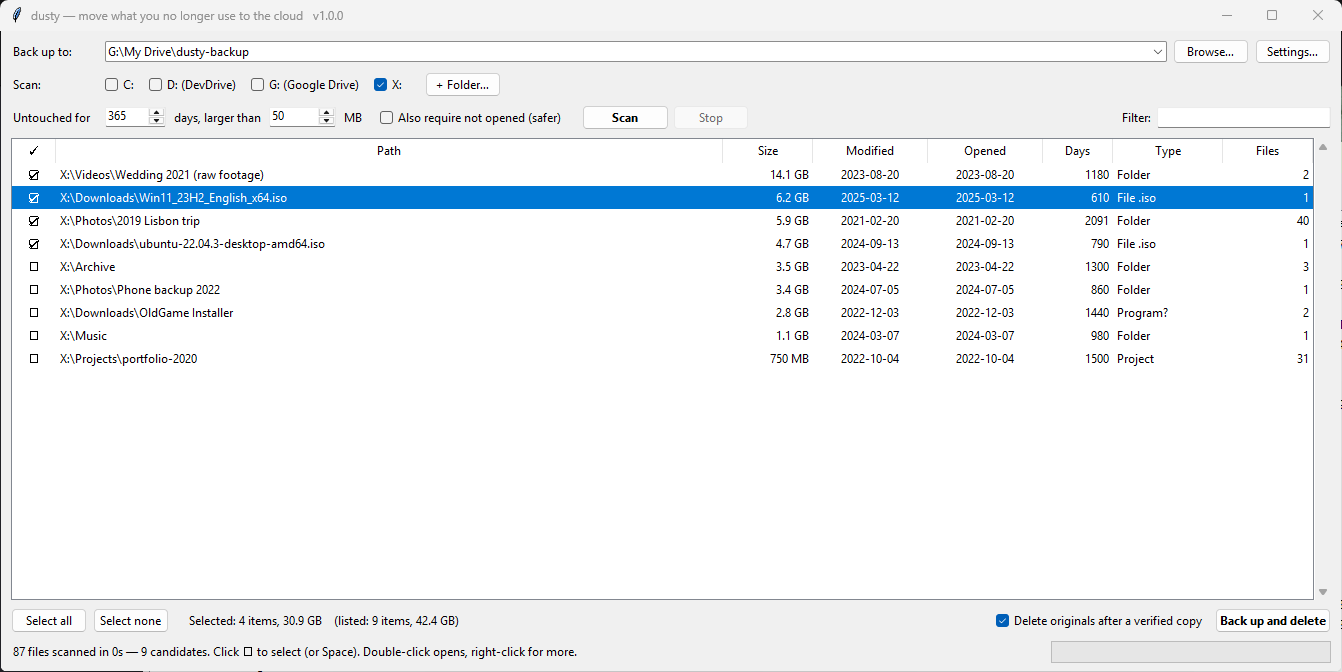
Who is it for? Anyone whose C: or D: drive is full of old downloads, finished projects,
raw videos, photo dumps and installers they don't want to lose, but don't need on the laptop.
Disk-usage tools like WinDirStat, TreeSize or WizTree show you what is big. dusty also shows you
what is old, and moves it to the cloud safely in one go.
Features
- Fast. Folder sizes are counted in parallel. About 3 million files take under a minute on an SSD. Changing the thresholds afterwards is instant, with no rescan.
- Shows whole folders. If everything inside
Photos\2019 tripis old, you get one row forPhotos\2019 trip, not 400 rows of photos. If something inside is still in use, dusty looks one level deeper. - Projects stay whole. A folder that contains code or a project marker (
.git,package.json,*.sln,*.py…) is offered entirely or not at all, so nothing is pulled out of a repo you still use. - Leaves the system alone. Windows, Program Files, AppData, dot-folders, OneDrive, hidden and system files, drive-root files and links are never listed.
- Fast to the cloud. Cloud drives are slow at creating files: each one costs tens of
milliseconds, whatever its size. So dusty stores a folder with hundreds of small files (a
node_modules, an old website, a photo export) as a single.zip, and copies everything else 8 files at a time. Backing up 1,500 small files to Google Drive took 98 s in v1.0 and takes 1.4 s now. - Copy, check, then delete. An item is deleted only after every file in it was copied and verified by size, or by SHA-256 if you prefer. If anything fails, the original stays where it is.
- Keeps the original paths.
D:\Projects\oldis backed up to<backup>\D\Projects\old, so you can always tell where something came from. - Can be resumed. If you stop or the run is interrupted, the item in progress is not deleted. Running the same items again skips files that were already copied.
- Logs every item.
_dusty_log.csvin the backup folder records each one. - Finds your cloud folders. It suggests Google Drive (in any language), OneDrive, Dropbox, iCloud and others as the destination.
- English and Turkish UI, picked automatically from your system language.
Download
Windows: download dusty.exe and double-click it. There is no installer, and you don't need Python or admin rights.
- Settings are saved in
dusty-config.jsonnext to the exe, so you can run it from a USB stick or any folder. Delete both files and nothing is left behind. - "Windows protected your PC"? The exe is not code-signed (certificates cost hundreds of dollars a year), so SmartScreen warns about any new download. Click More info → Run anyway. Each release exe is built by GitHub Actions straight from the tagged source, and its SHA-256 is listed on the release page.
Linux / macOS / Python users:
pip install git+https://github.com/bugraskl/dusty
That gives you two commands:
| command | what it does |
|---|---|
dusty-gui | opens the window (no console window on Windows) |
dusty | the same window, or dusty scan for a report |
You can also run it without installing:
git clone https://github.com/bugraskl/dusty && cd dusty && python -m dusty
Tkinter ships with Python on Windows and macOS. On Debian/Ubuntu, run sudo apt install python3-tk.
Using the window
- Back up to: pick a destination. The list shows cloud folders found on this PC.
- Scan: tick drives, or add folders with + Folder…, then press Scan. Scanning only reads file metadata and never changes anything.
- Set Untouched for N days and larger than M MB. The list updates as you type. Tick Also require not opened for a stricter check (see Access time below).
- Tick rows by clicking ☐, or select several and press Space. Double-click a row to open its folder. Right-click a row to hide it permanently.
- Press Back up and delete. To keep the originals, untick Delete originals after a verified copy first.
Command line
dusty scan                                  # all local drives, settings from the config file
dusty scan --root D:\ --days 730 --min-mb 200
dusty scan --root ~/Downloads --format json > old.json
dusty scan --format csv --exclude "D:\Work" > report.csv
dusty gui --root E:\Archive --dest "G:\My Drive\dusty-backup" --scan
dusty scan is read-only. Moving files is only done from the window, where you can see exactly
what will happen.
How candidates are chosen
D:\                      ← drive root: never offered, its files are never touched
├─ Windows, Program Files, $Recycle.Bin …            skipped (system)
├─ Users\me              ← profile: never offered as a whole
│  ├─ AppData, .ssh, .vscode, OneDrive …             skipped
│  └─ Downloads          ← looked into, because something in it is recent
│     ├─ old-installer\        all files > 365 days → ONE ROW
│     ├─ movie.mkv (3 GB)      old → ONE ROW
│     └─ today.pdf             recent → keeps Downloads from being one row
└─ Projects
   ├─ website-2019\  (.git)    project, all old → ONE ROW (never split)
   └─ current-app\   (main.py) project, recent → nothing offered from inside
- A folder counts as "untouched" when the newest modification time of any file inside it is older than the threshold. Empty folders use their own timestamp.
- Listing goes
max_depthlevels deep (4 by default, e.g.C:\Users\me\Downloads\X). Below that, folders are only summed up. - Large loose files (≥ 1 MB, and above your size threshold) get their own row.
- Timestamps more than a day in the future are ignored, and unreadable folders count as "in use".
Access time
Windows can record when a file was last opened, but whether it does depends on the system
(fsutil behavior query disablelastaccess). Copying or restoring files also resets it. That is
why the stricter "not opened" check is optional: it is safer, but it can hide everything if your
data was recently copied to a new disk.
Settings
Change settings in the window under Settings…, or edit the JSON file directly:
- Windows:
%APPDATA%\dusty\config.json - Linux/macOS:
~/.config/dusty/config.json - or any path set in
DUSTY_CONFIG/ passed with--config
| key | default | meaning |
|---|---|---|
destination | "" | backup folder |
days, min_mb | 365, 50 | thresholds |
use_access_time | false | also require "not opened since" |
delete_after_copy | true | delete originals after a verified copy |
verify | "size" | "size" or "hash" (SHA-256, slower) |
pack_small | true | store folders of many small files as one .zip |
pack_min_files, pack_max_avg_mb | 200, 4 | ...when they hold at least this many files, averaging below this size |
copy_workers | 8 | files copied in parallel |
excludes | [] | paths that are never touched, including everything inside |
max_depth | 4 | deepest level offered as its own row |
workers | 8 | scan threads |
language | "auto" | "auto", "en", "tr" |
system_names, users_skip, profile_skip | see config.py | folders that are skipped |
project_markers, code_extensions | see config.py | what counts as a project |
Unknown keys are ignored, and values of the wrong type fall back to the default.
Restoring
The backup mirrors the original paths, so restoring means copying a folder back, or extracting a zip into the original parent folder (the zip holds the folder itself):
G:\My Drive\dusty-backup\D\Photos\2019 trip              →  D:\Photos\2019 trip
G:\My Drive\dusty-backup\D\Projects\website-2019.zip     →  extract into D:\Projects\
_dusty_log.csv lists every item with its original and backup location.
Why zip, and how it is checked
Before anything is deleted, every zip is reopened. Each entry's CRC is checked, and its list of files and sizes must match the source exactly. Already-compressed formats (jpg, mp4, zip, pdf…) are stored as they are; everything else uses fast deflate. The zip is written in one forward pass with a large buffer, which is about 6× faster on cloud drives than a normal zip writer that goes back to patch every header. To turn packing off or change its threshold, use Settings….
Good to know
- Cloud apps cache on your system disk. Google Drive for desktop and OneDrive write files to a
local cache before uploading them. Moving 100 GB "to the cloud" can briefly use 100 GB on
C:. dusty warns you when a selection gets close to that. Work in batches and let the upload finish in between. - Deletion is permanent. Files are not moved to the Recycle Bin, because the point is to free space and the verified copy is your backup. Check that your cloud app has finished uploading before relying on it.
- Links are safe. Symlinks and junctions are never followed. Deleting a folder that contains one removes only the link, never its target.
Development
pip install -e ".[test]"
pytest
The tests create real folders, files, junctions or symlinks, read-only files and paths longer than 260 characters in a temporary directory. CI runs them on Windows, Linux and macOS.
Build the portable exe yourself:
pip install pyinstaller
python packaging/build_exe.py      # → dist/dusty.exe
Use a python.org (or uv) Python for this. Conda's Python does not bundle Tk correctly. Pushing a
tag such as v1.2.0 makes GitHub Actions test, build, smoke-test and publish the exe on the
Releases page.
Issues and pull requests are welcome, especially translations: add a dict to
dusty/i18n.py.
License
Türkçe
dusty, diskinizde uzun süredir dokunulmamış klasör ve dosyaları bulur. İşaretlediklerinizi Google Drive, OneDrive, NAS ya da harici diske kopyalar, kopyayı doğrular ve ancak ondan sonra orijinali siler.
- İndir ve çalıştır: dusty.exe
dosyasını indirip çift tıklayın. Kurulum, Python ya da yönetici izni gerekmez. Ayarlar exe'nin
yanındaki
dusty-config.jsondosyasına yazılır, yani USB bellekten de çalışır. Windows "Bilgisayarınız korundu" derse Ek bilgi → Yine de çalıştır'a tıklayın: exe kod imzalı değil, ama GitHub Actions tarafından doğrudan kaynak koddan derleniyor. - Python ile:
pip install git+https://github.com/bugraskl/dusty, ardındandusty-gui. - Arayüz dili sistem dilinden seçilir (Türkçe/İngilizce). İsterseniz Ayarlar… içinden değiştirebilirsiniz.
- Tarama hiçbir şeyi değiştirmez. Eşikleri (gün / MB) değiştirdiğinizde liste anında güncellenir.
- Projeler (
.git,package.json, kod dosyası olan klasörler) hiçbir zaman bölünmez. - Sistem klasörlerine dokunulmaz: Windows, Program Files, AppData,
.ile başlayan klasörler ve OneDrive listelenmez. - Kopyalamada hata olan öğe silinmez. Yarıda kalan bir işlem yeniden başlatılabilir; daha önce kopyalanmış dosyalar atlanır.
- Hızlı: Bulut sürücüler her yeni dosya için onlarca milisaniye harcar. Bu yüzden çok sayıda
küçük dosyası olan klasörler (200+ dosya) tek bir
.zipolarak saklanır, diğerleri 8'er dosya paralel kopyalanır. 1.500 küçük dosya Google Drive'a v1.0'da 98 saniyede, şimdi 1,4 saniyede gidiyor. Zip, silme öncesinde tamamen açılıp CRC ve dosya listesiyle doğrulanır. - Yedek, orijinal yolu korur (
…\D\Projeler\eski). Hangi öğenin nereye gittiği hedefteki_dusty_log.csvdosyasında yazar. - Dikkat: Google Drive ve OneDrive dosyaları yüklemeden önce C: sürücüsünde önbelleğe alır. Büyük taşımaları parça parça yapın ve yüklemenin bitmesini bekleyin. Silme kalıcıdır, dosyalar Geri Dönüşüm Kutusu'na gitmez.