Back to Projects

Cv2 Threshold Visualizer

CV2 Threshold Visualizer

CV2 Threshold Visualizer

Python OpenCV License: MIT

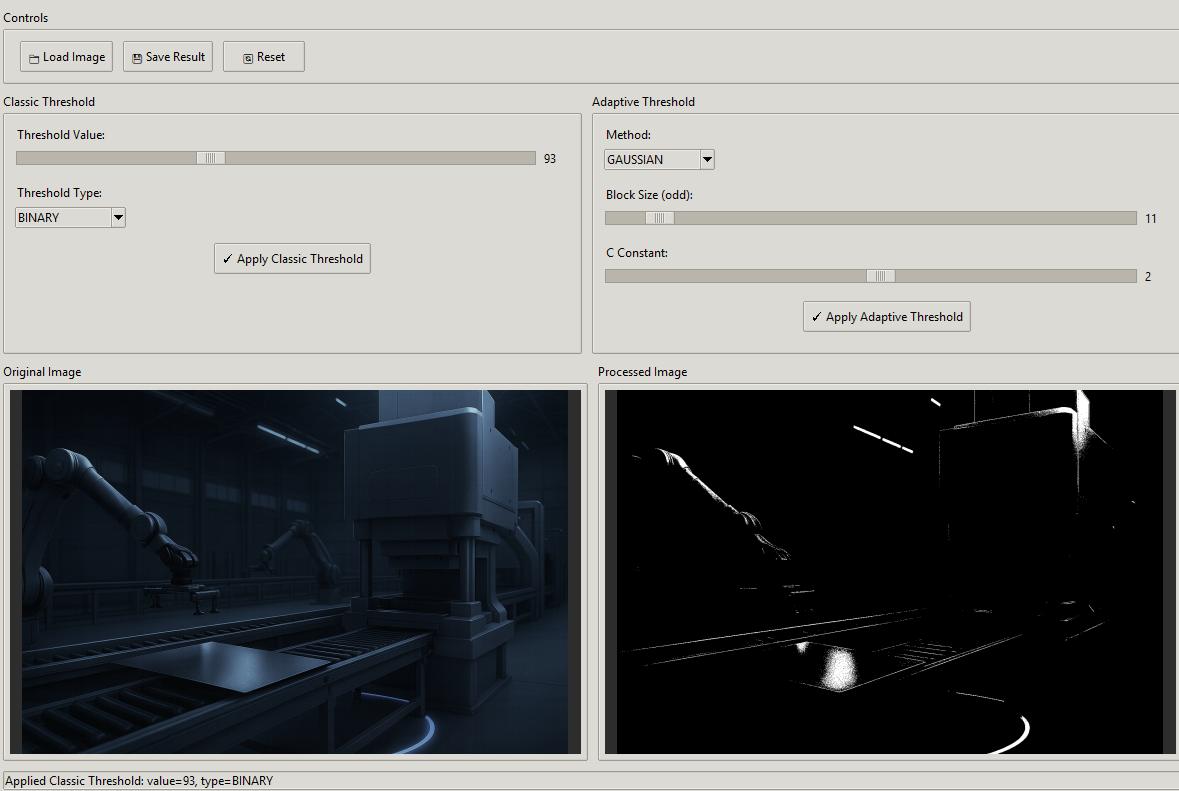
A powerful desktop GUI application for experimenting with OpenCV threshold operations. Upload any image and visualize the effects of different thresholding techniques in real-time.

Demo Screenshot

✨ Features

  • πŸ–ΌοΈ Image Upload: Load images in various formats (PNG, JPG, JPEG, BMP, TIFF, WebP)
  • πŸ“Š Classic Threshold: Apply simple thresholding with adjustable value (0-255)
  • πŸ”„ Adaptive Threshold: Apply adaptive thresholding with MEAN or GAUSSIAN methods
  • πŸ‘οΈ Side-by-Side Preview: Compare original and processed images instantly
  • πŸ’Ύ Save Results: Export processed images to your desired location
  • πŸŽ›οΈ Real-time Controls: Adjust parameters with intuitive sliders

πŸš€ Quick Start

Prerequisites

  • Python 3.8 or higher
  • pip package manager

Installation

  1. Clone the repository

    git clone https://github.com/bugraskl/cv2-threshold-visualizer.git
    cd cv2-threshold-visualizer
    
  2. Install dependencies

    pip install -r requirements.txt
    
  3. Run the application

    python app.py
    

πŸ“– Usage

Loading an Image

  1. Click the "πŸ“ Load Image" button
  2. Select an image file from your computer
  3. The original image will appear in the left panel

Classic Threshold

Classic thresholding converts pixels to black or white based on a single threshold value.

  1. Adjust the Threshold Value slider (0-255)
  2. Select a Threshold Type from the dropdown:
    • BINARY: Pixels > threshold β†’ white, else β†’ black
    • BINARY_INV: Inverse of BINARY
    • TRUNC: Pixels > threshold β†’ threshold value, else β†’ unchanged
    • TOZERO: Pixels > threshold β†’ unchanged, else β†’ black
    • TOZERO_INV: Inverse of TOZERO
  3. Click "βœ“ Apply Classic Threshold"

Adaptive Threshold

Adaptive thresholding calculates threshold values for smaller regions, making it ideal for images with varying lighting conditions.

  1. Select a Method:
    • MEAN: Threshold = mean of neighborhood area
    • GAUSSIAN: Threshold = Gaussian-weighted sum of neighborhood
  2. Adjust Block Size (must be odd): Size of the neighborhood area
  3. Adjust C Constant: Value subtracted from the calculated threshold
  4. Click "βœ“ Apply Adaptive Threshold"

Saving Results

  1. Apply a threshold to your image
  2. Click "πŸ’Ύ Save Result"
  3. Choose the destination and format (PNG/JPG)

🎯 When to Use Each Method

MethodBest For
Classic BINARYSimple images with uniform lighting
Classic TRUNCReducing bright areas while preserving darks
Adaptive MEANImages with gradual lighting changes
Adaptive GAUSSIANImages with sharp text or fine details

πŸ“ Project Structure

cv2-threshold-visualizer/
β”œβ”€β”€ app.py              # Main application
β”œβ”€β”€ requirements.txt    # Python dependencies
β”œβ”€β”€ README.md           # This file
β”œβ”€β”€ LICENSE             # MIT License
β”œβ”€β”€ .gitignore          # Git ignore rules
└── screenshots/        # Application screenshots
    └── demo.png

πŸ› οΈ Technical Details

Dependencies

PackageVersionPurpose
opencv-pythonβ‰₯4.5.0Image processing
Pillowβ‰₯9.0.0Image display in Tkinter
numpyβ‰₯1.20.0Array operations

Threshold Functions Used

# Classic Threshold
cv2.threshold(gray_image, threshold_value, 255, cv2.THRESH_BINARY)

# Adaptive Threshold
cv2.adaptiveThreshold(
    gray_image,
    255,
    cv2.ADAPTIVE_THRESH_GAUSSIAN_C,
    cv2.THRESH_BINARY,
    block_size,
    c_value
)

🀝 Contributing

Contributions are welcome! Here's how you can help:

  1. Fork the repository
  2. Create a feature branch (git checkout -b feature/amazing-feature)
  3. Commit your changes (git commit -m 'Add amazing feature')
  4. Push to the branch (git push origin feature/amazing-feature)
  5. Open a Pull Request

πŸ“ License

This project is licensed under the MIT License - see the LICENSE file for details.

πŸ™ Acknowledgments

  • OpenCV for the powerful image processing library
  • Tkinter for the GUI framework
  • The Python community for continuous support

<p align="center"> Made with ❀️ for the image processing community </p>

Technologies

Python

Details

Stars1
Forks0
LanguagePython

Links

Source Code
Ask AI